
*LTI Integrations are only available under paid Acclaim plans. For more information, please contact us or visit our pricing page.
Acclaim seamlessly integrates with Moodle, which allows users to open Acclaim within the LMS with one set of login credentials. Further, Acclaim will automatically map course name(s) and rosters for ease of use and clarity. To set up the integration, please follow these steps:
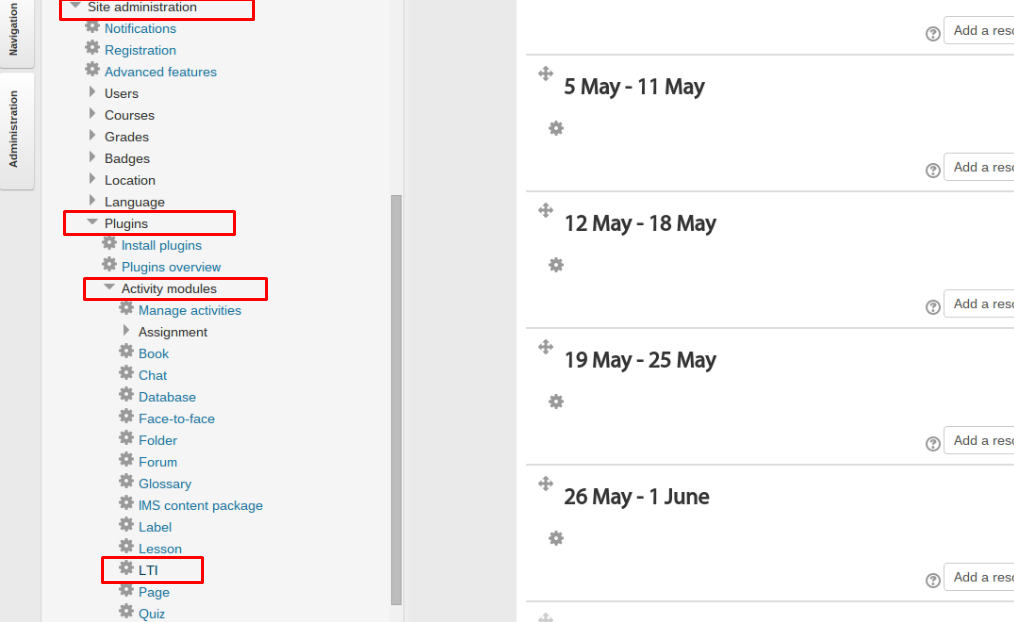
1) Make sure Editing is turn on and in your admin menu, click on "Site Administration", then "Plugins", then "Activity modules", and finally "LTI".
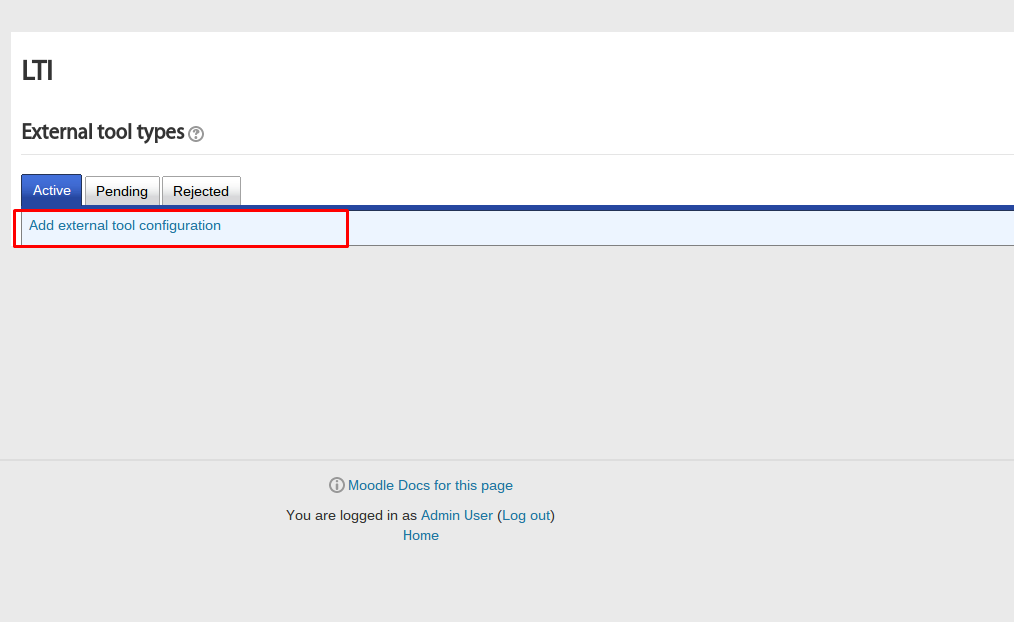
2) Click on “Add external tool configuration" to start filling out the integration details.
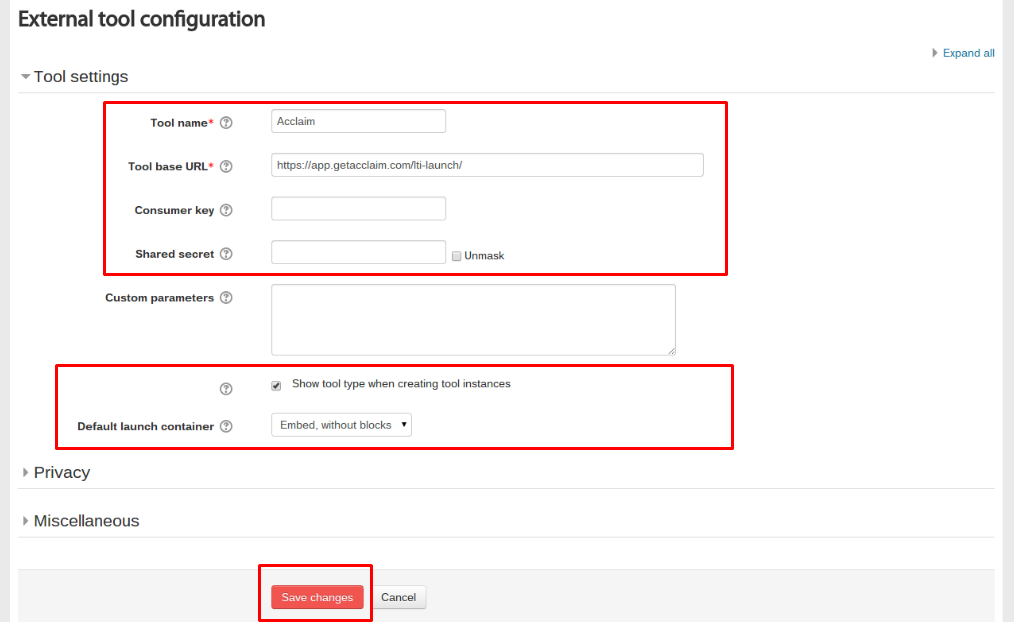
3) Enter your information.
Tool Name: This will show up within your course content as the link title.
Tool base URL: This is the launch URL for Acclaim and will always be https://app.getacclaim.com/lti-launch/
Consumer Key / Shared Secret: The "Consumer Key" and "Shared Secret" are information we'll provide upon signing up for the premium version of Acclaim. Please contact us if you don't have these keys already.
Make sure you check the box next to "Show tool type when creating tool instances".
Default launch container: You can decide whether you'd like Acclaim to launch within Moodle or as a new tab/window. We recommend selecting "Embed, without blocks" to provide a consistent user experience.
Click on "Save changes" at the bottom of your screen.
Note: Depending on your Moodle installation, some of these menus and screens may look different.
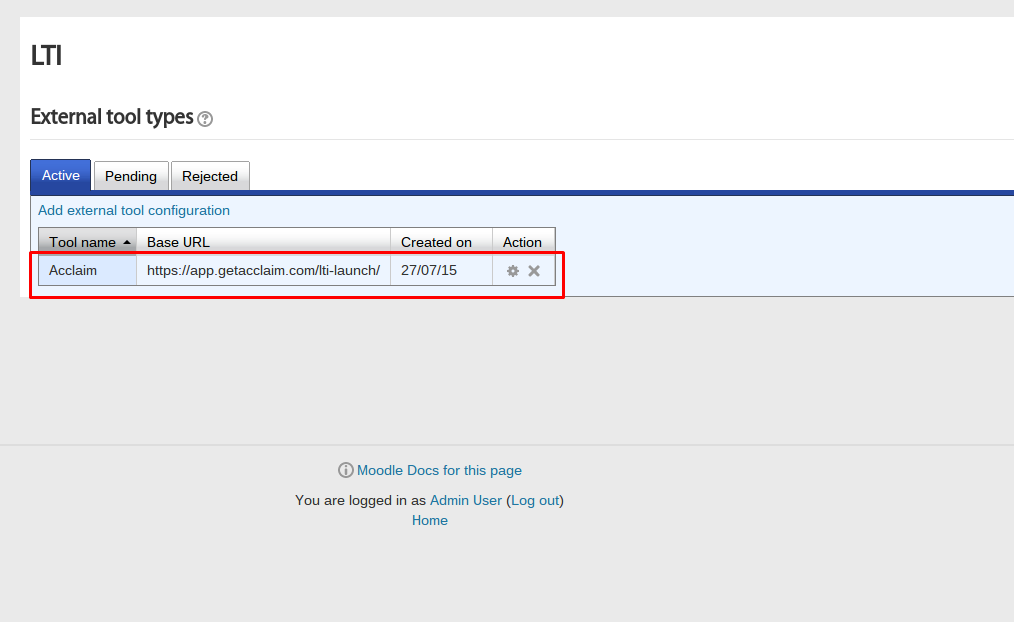
4) Congratulations, you've successfully installed Acclaim! You can now go back to your course content and add Acclaim as an LTI activity within your modules.
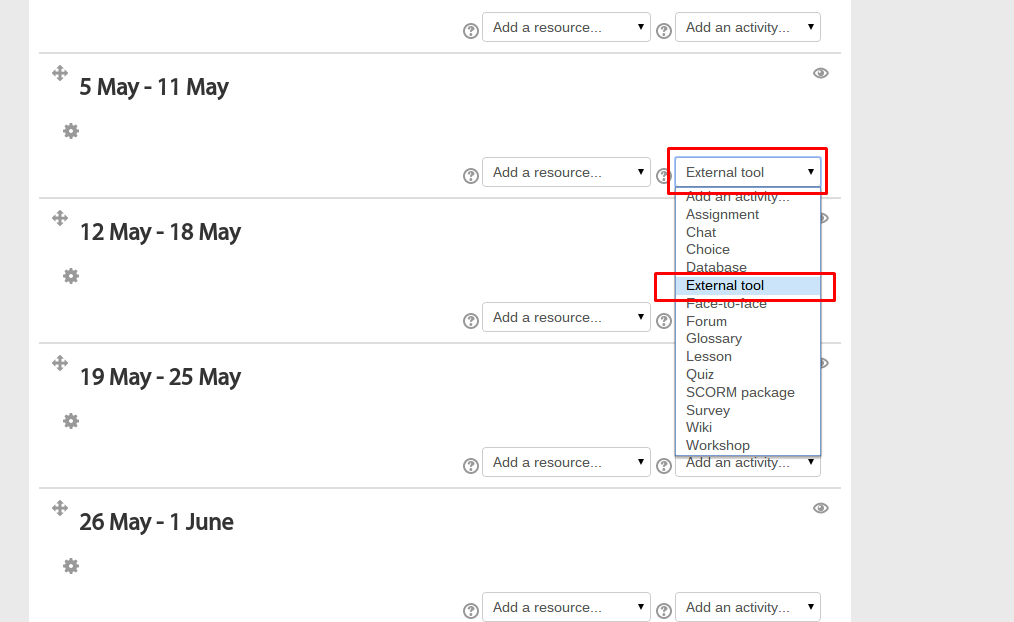
5) In a module within your course content, click on "Add an activity" and select "External Tool" from the drop down menu.
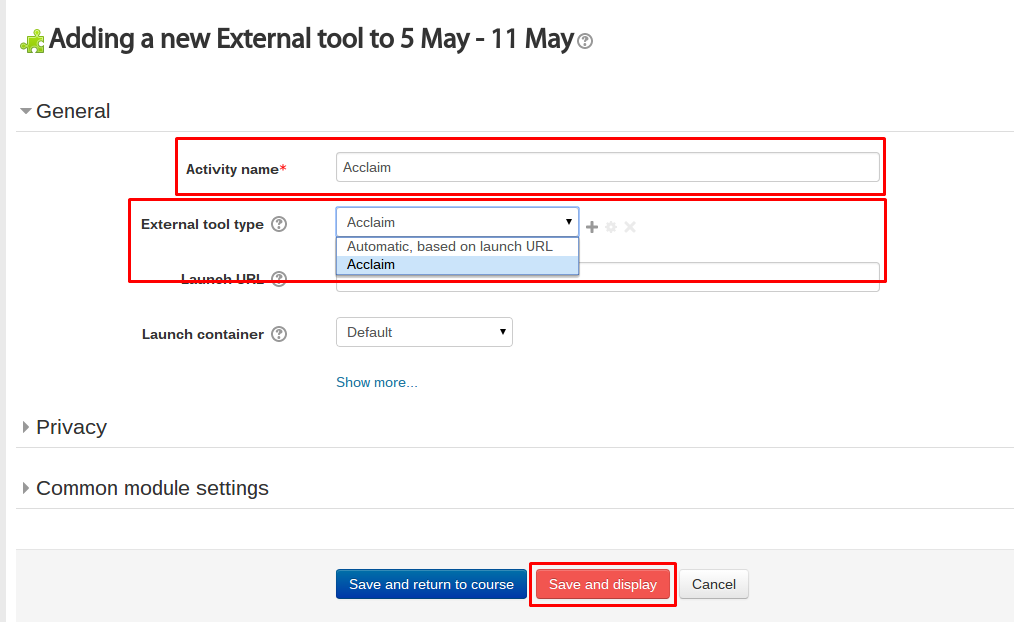
6) You can keep the same Activity name here or change it to something else. Make sure you select "Acclaim" from the External tool type drop down menu. Click on "Save and display".
IMPORTANT! Click on "Show more..." to make sure you don't have any pre-filled information in any of the additional fields. From time to time, browsers may save information for your convenience and this may cause an error when adding Acclaim to your course.
7) Acclaim launches within Moodle and automatically grabs course name(s) and roster information.

0 Comments