
*LTI Integrations are only available under paid Acclaim plans. For more information, please contact us or visit our pricing page.
Acclaim seamlessly integrates with Haiku Learning, which allows users to open Acclaim within the LMS with one set of login credentials. Further, Acclaim will automatically map course name(s) and rosters for ease of use and clarity. To set up the integration, please follow these steps:
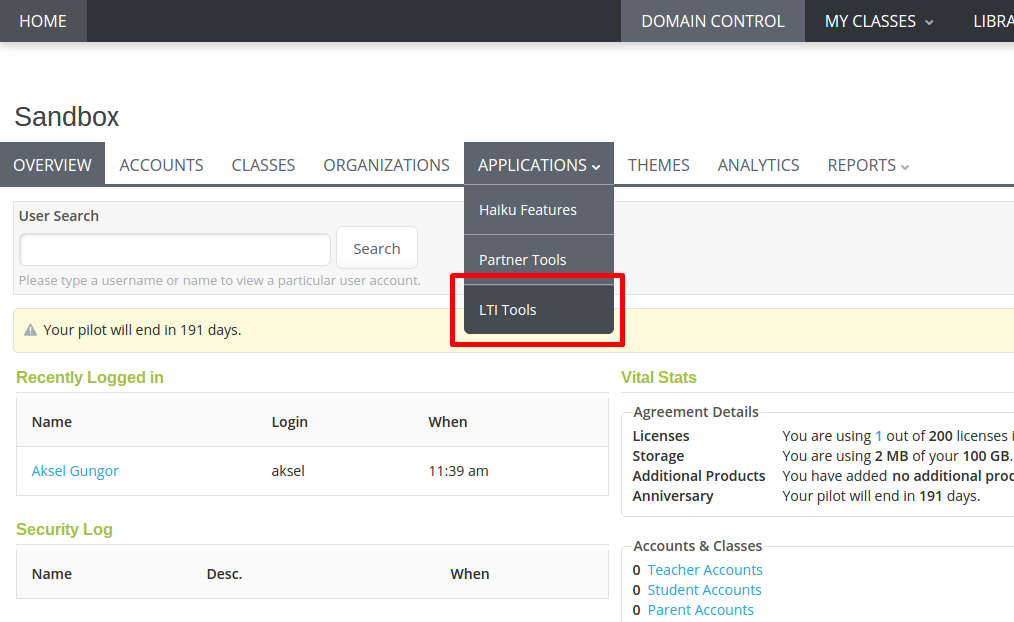
1) In the Admin View, click on "Applications" and select "LTI Tools" from the dropdown menu.
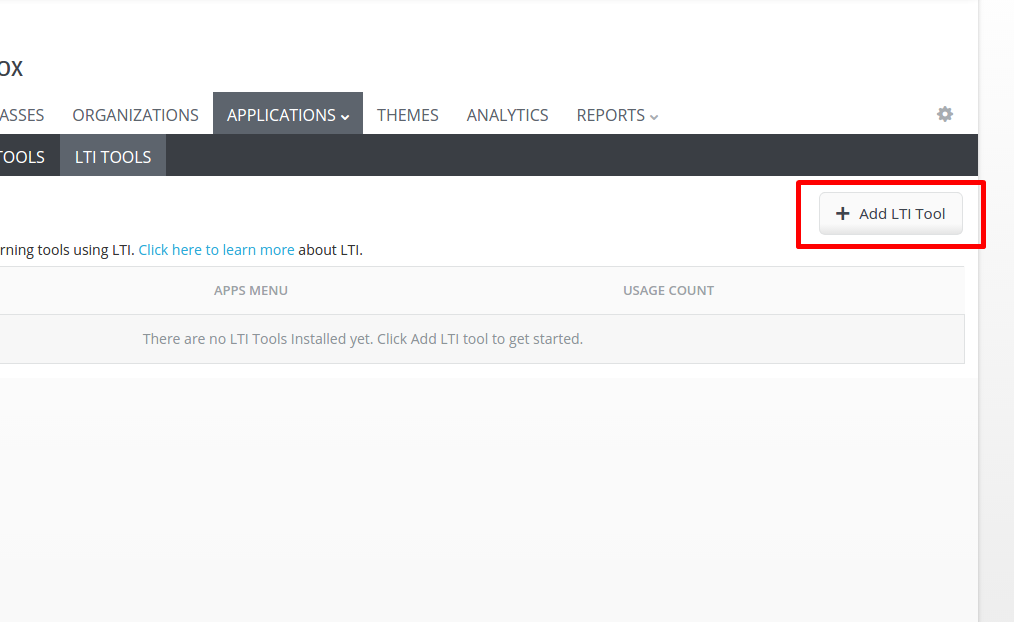
2) Click on “Add LTI Tool” to start filling out the integration details.
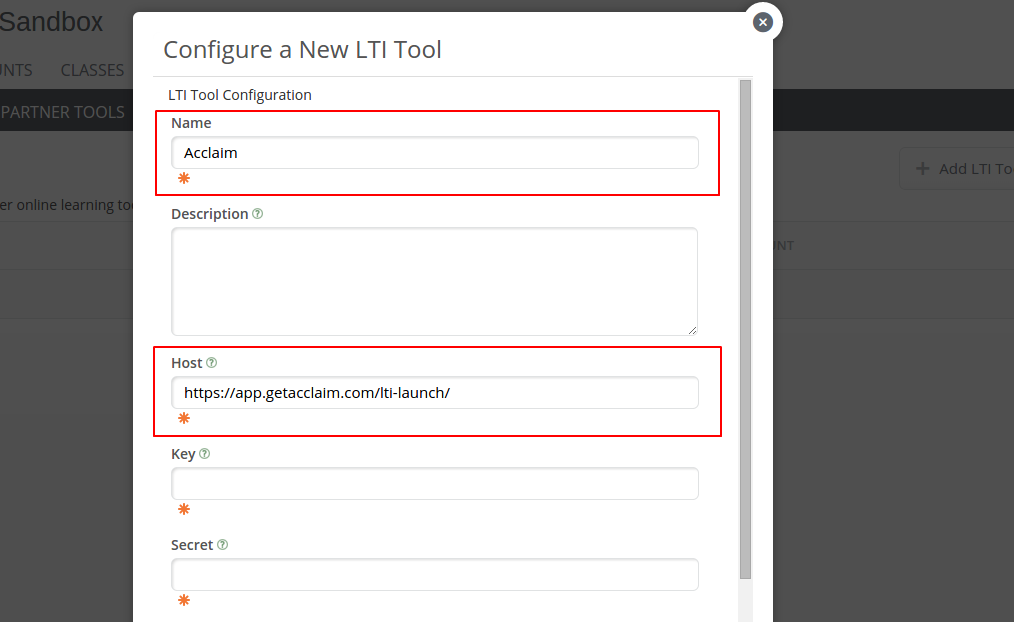
3) Enter your information.
Title: This will show up within your course content as the link title.
Description: You can enter a description for the tool. You can also leave this blank.
Host: This is the launch URL for the tool. Always use "https://app.getacclaim.com/lti-launch/"
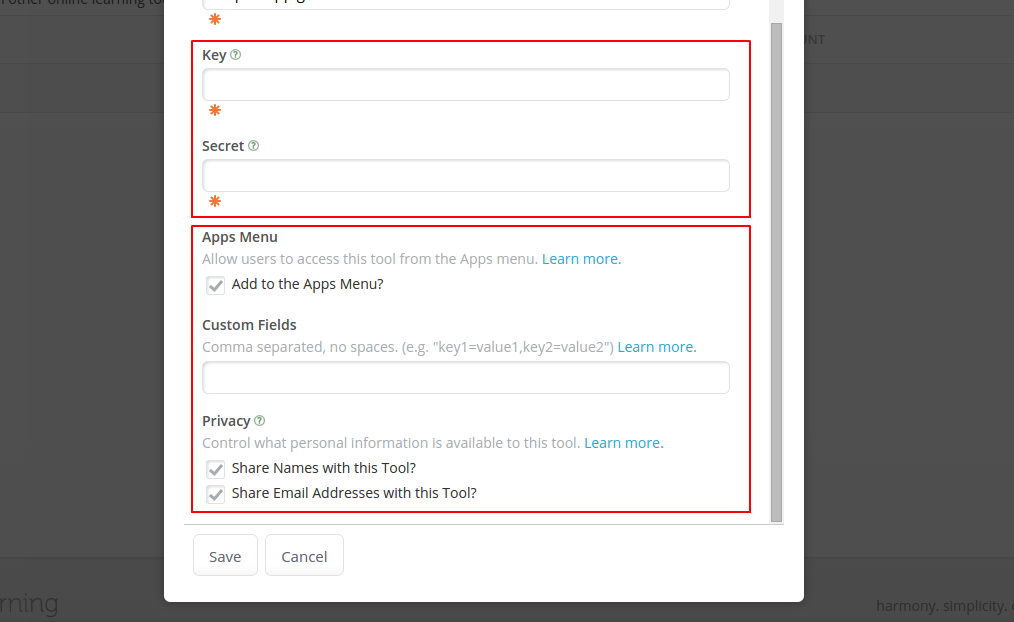
Key/Secret: Make sure you select the "Link key/secret" radio button. The "Key" and "Secret" are information we'll provide upon signing up for the premium version of Acclaim. Please contact us if you don't have these keys already.
Apps Menu: This allows users to access Acclaim from the Apps menu in Haiku Learning.
Custom Fields: Leave this blank.
Privacy: Make sure you check both items. Acclaim uses this to authenticate users properly.
Click on “Save”. You’ve now successfully installed Acclaim as an External Tool!
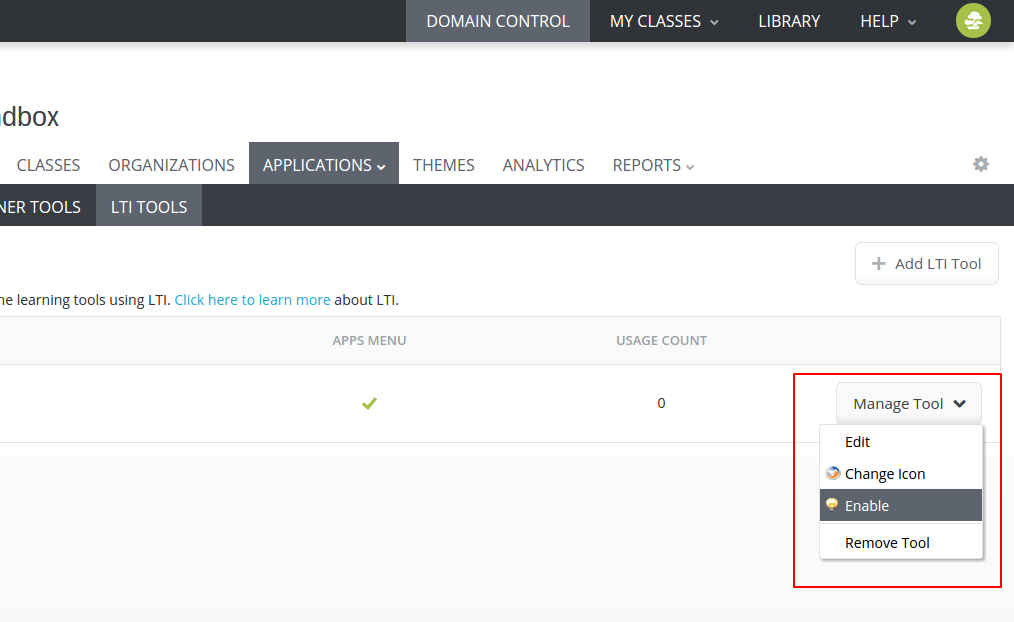
Make sure you click on the "Manage Tool" button and select "Enable" to activate Acclaim.
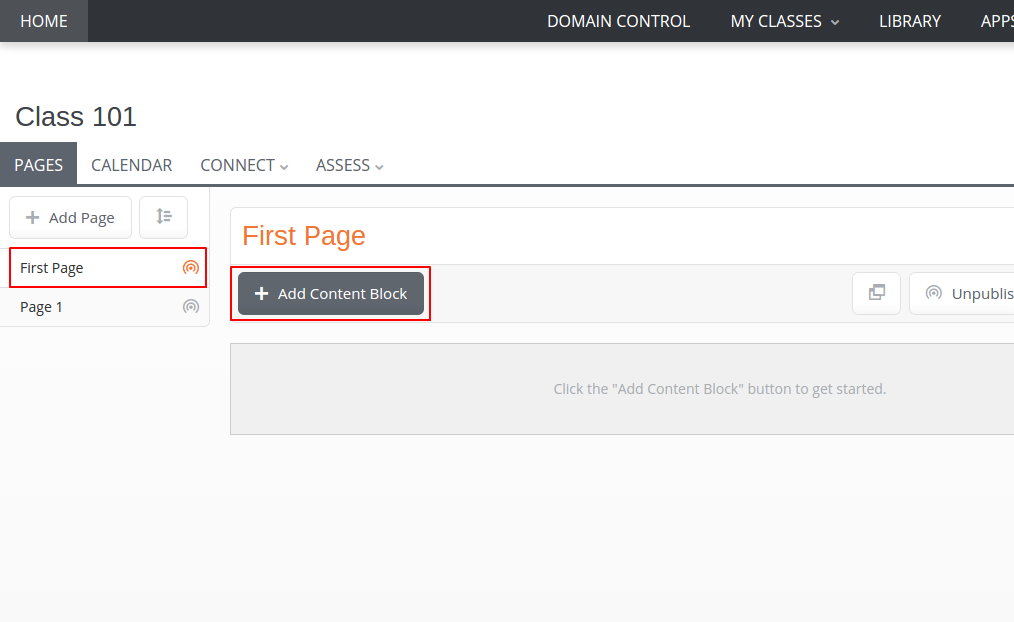
4) Go back to your class and Acclaim will now show up as an option when adding a content block within a page. To test this, select an existing page and click on “Add Content Block”.
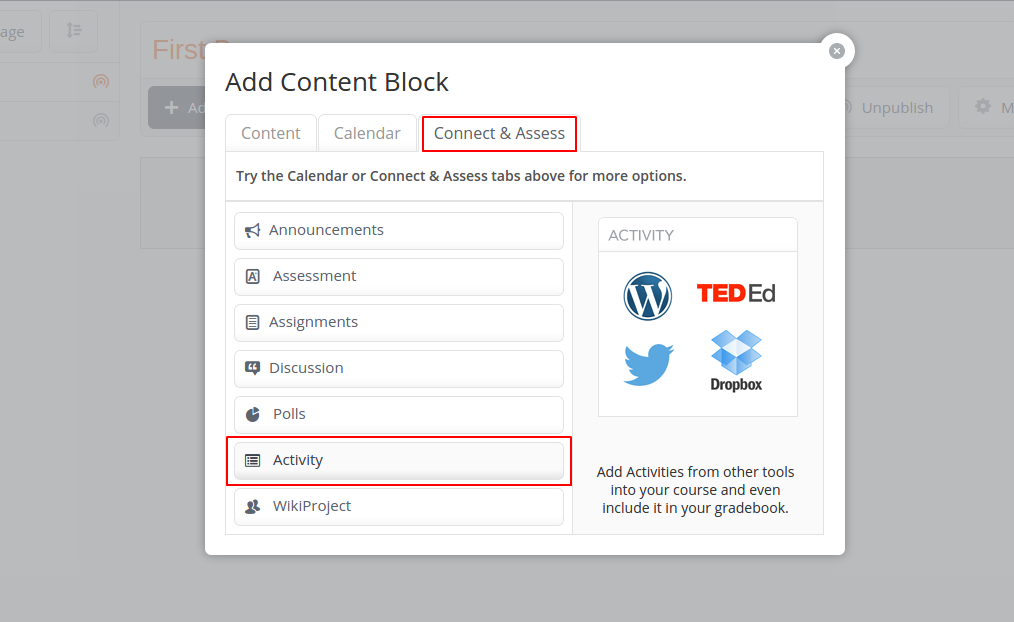
5) Select the "Connect & Assess" tab and click on "Activity".
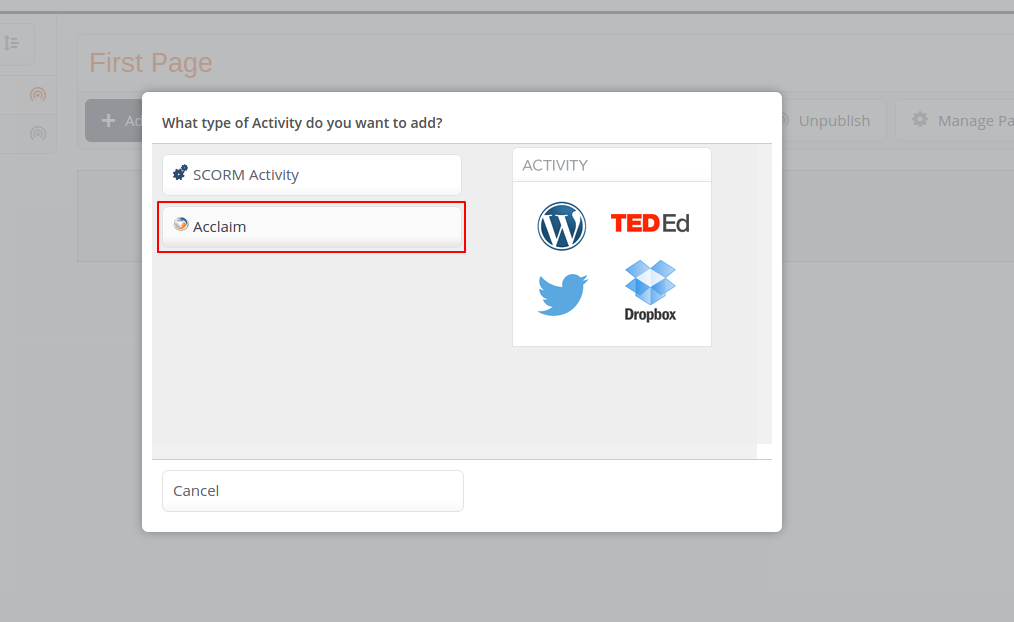
6) Select Acclaim from the list.
7) You can use the "Title" field to name the "link" to Acclaim. Click on "Save and Configure" to advance.
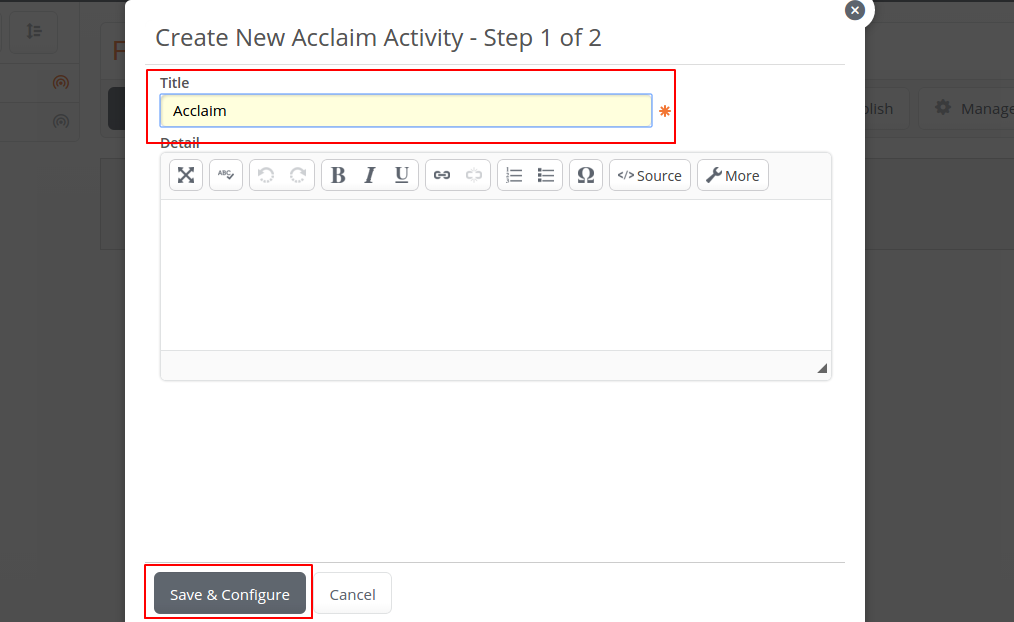
8) You will see a preview of Acclaim, click on "Publish" at the bottom left of your screen to continue.

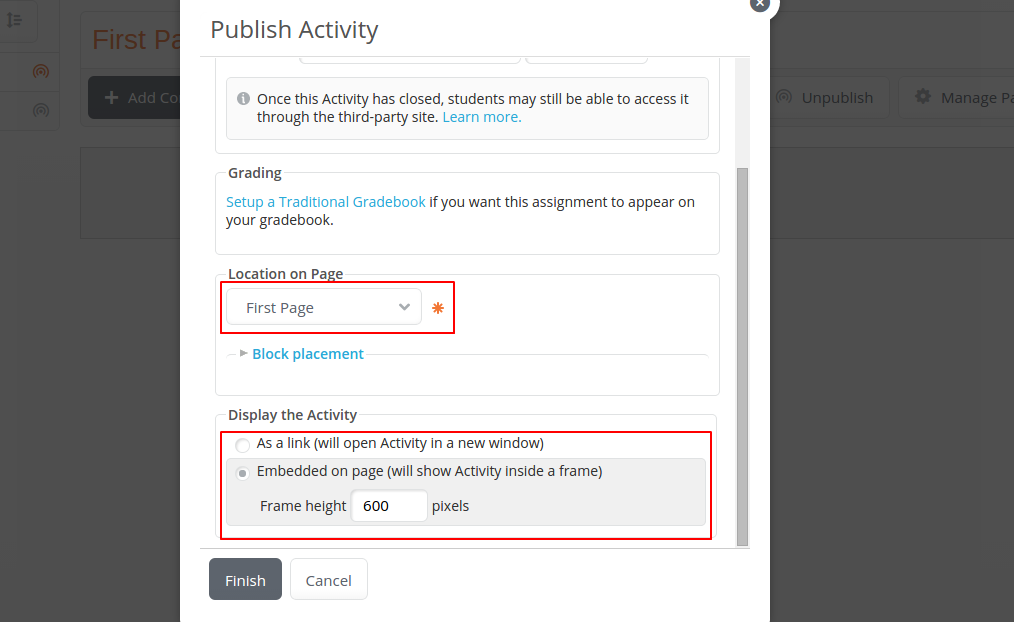
9) Before finalizing, make sure you select the right page location and whether you want Acclaim to open in a new window or within Haiku Learning. If you choose the latter, we recommend setting the default height at 600 pixels.
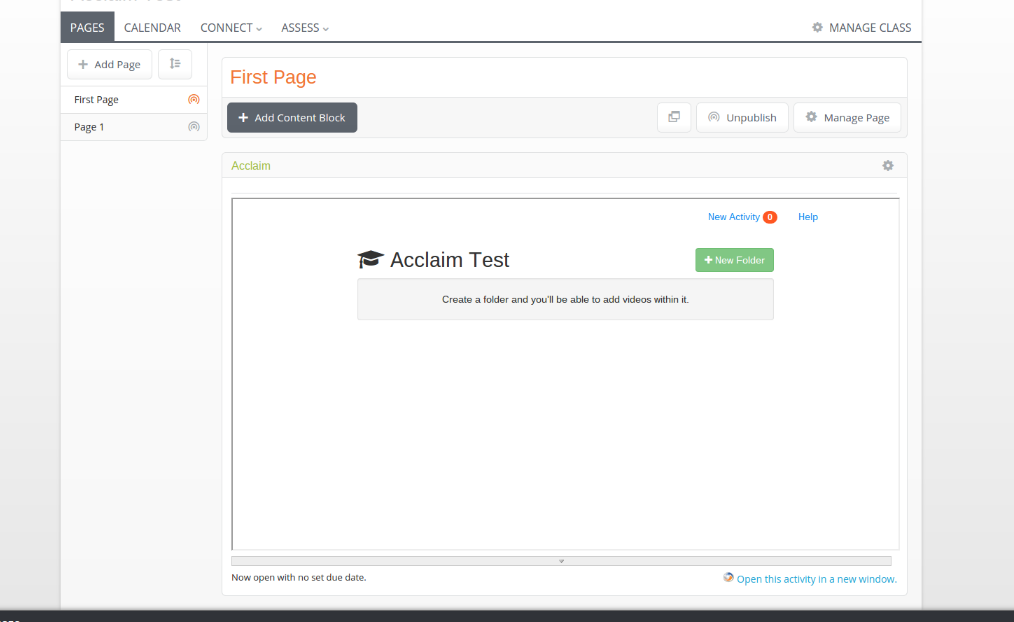
10) That's it! You've successfully added Acclaim within your content. You will now see and be able to use Acclaim within your class pages!
0 Comments