
*LTI Integrations are only available under paid Acclaim plans. For more information, please contact us or visit our pricing page.
Acclaim seamlessly integrates with Brightspace, which allows users to open Acclaim within the LMS with one set of login credentials. Further, Acclaim will automatically map course name(s) and rosters for ease of use and clarity. To set up the integration, please follow these steps:
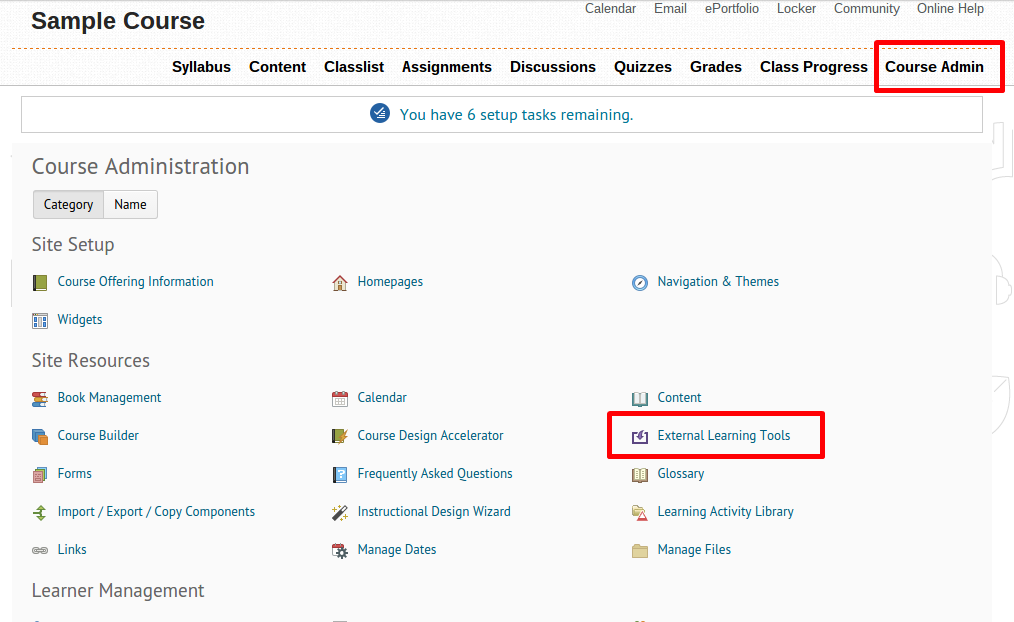
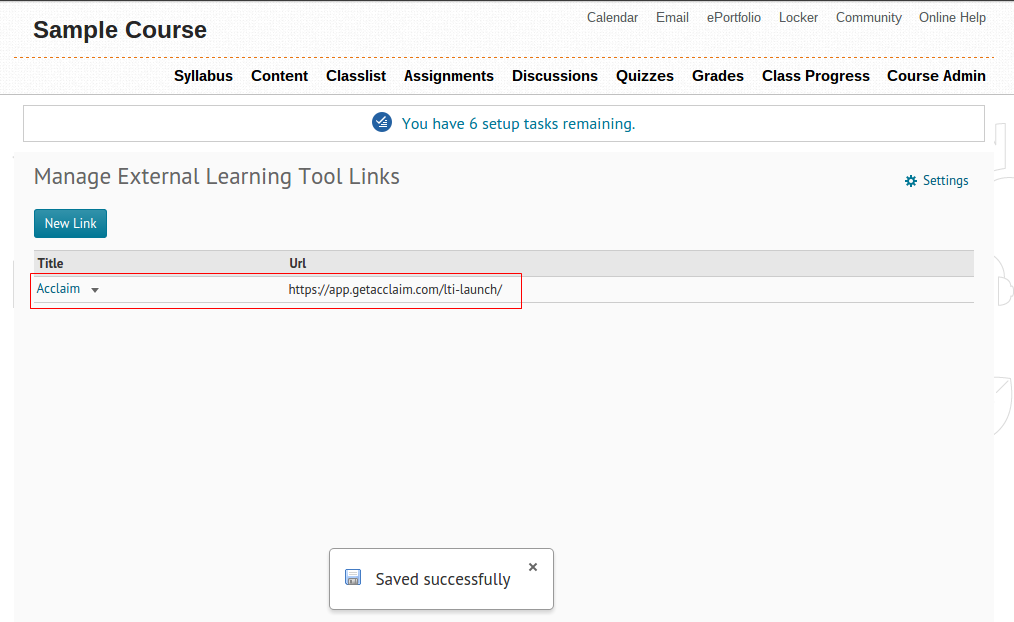
1) On the “Course Admin” page within Brightspace, click on “External Learning Tools”.
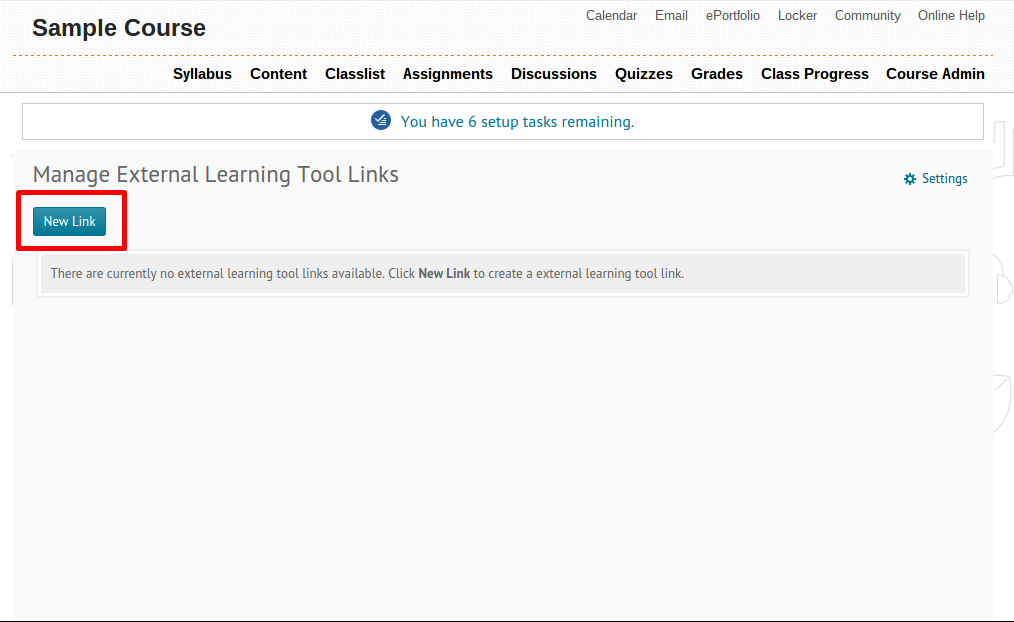
2) Click on “New Link” to start filling out the integration details.
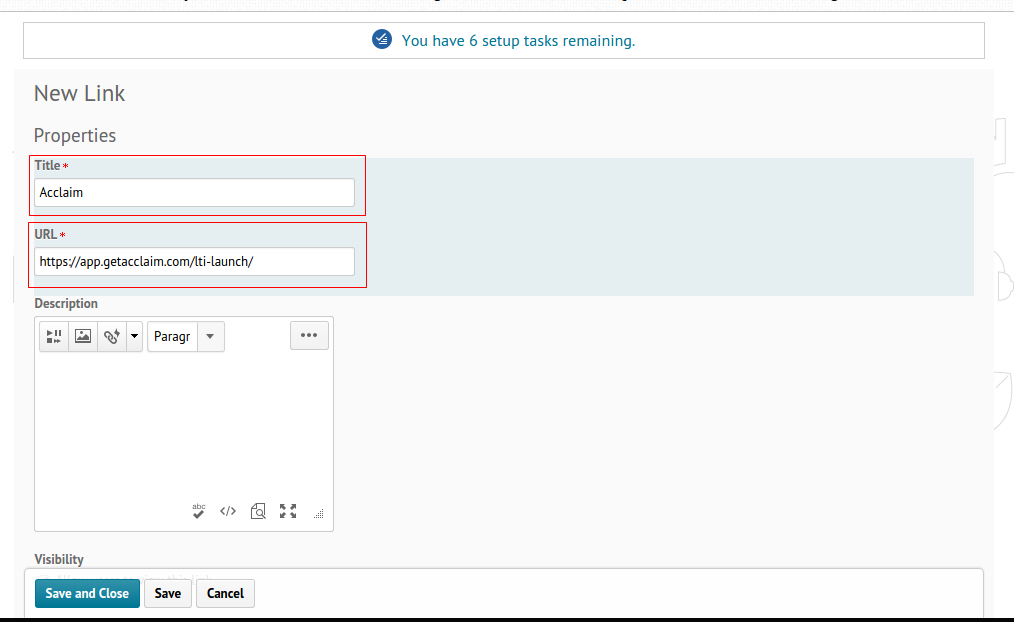
3) Enter your information.
Title: This will show up within your course content as the link title.
URL: This is the launch URL for the tool. Always use "https://app.getacclaim.com/lti-launch/"
Description: You can enter a description for the tool. You can also leave this blank.
Visibility: Leave this checked if you want users within a course to see a link to Acclaim. (You can go through the integration but "hide" it until users are ready)
Key/Secret: Make sure you select the "Link key/secret" radio button. The "Key" and "Secret" are information we'll provide upon signing up for the premium version of Acclaim. Please contact us if you don't have these keys already.
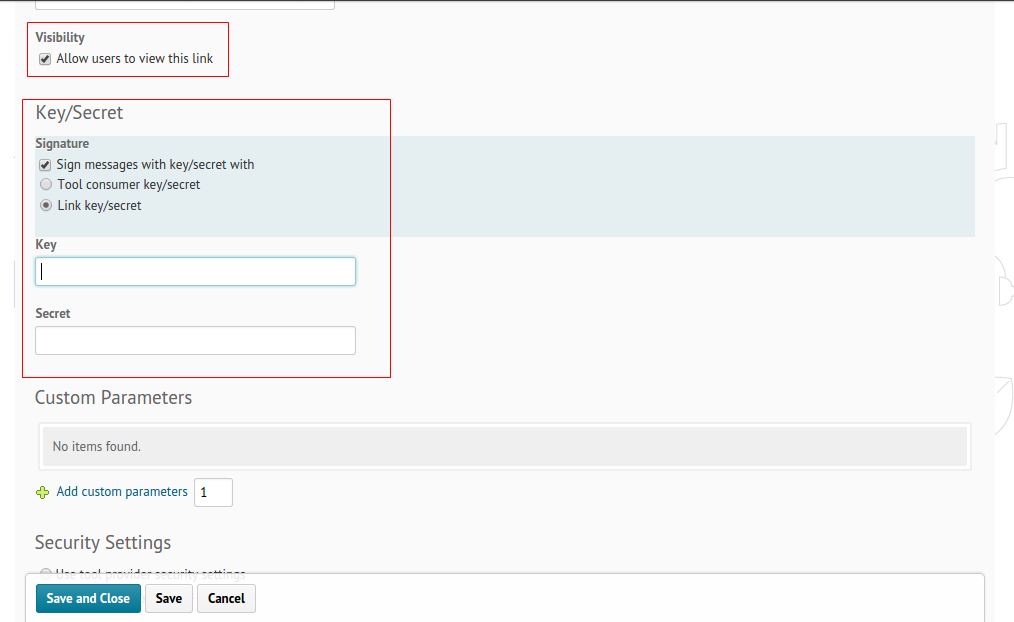
Custom Parameters: Leave this blank.
Security Settings: Make sure you check all items in the list. Acclaim uses this to authenticate users properly.
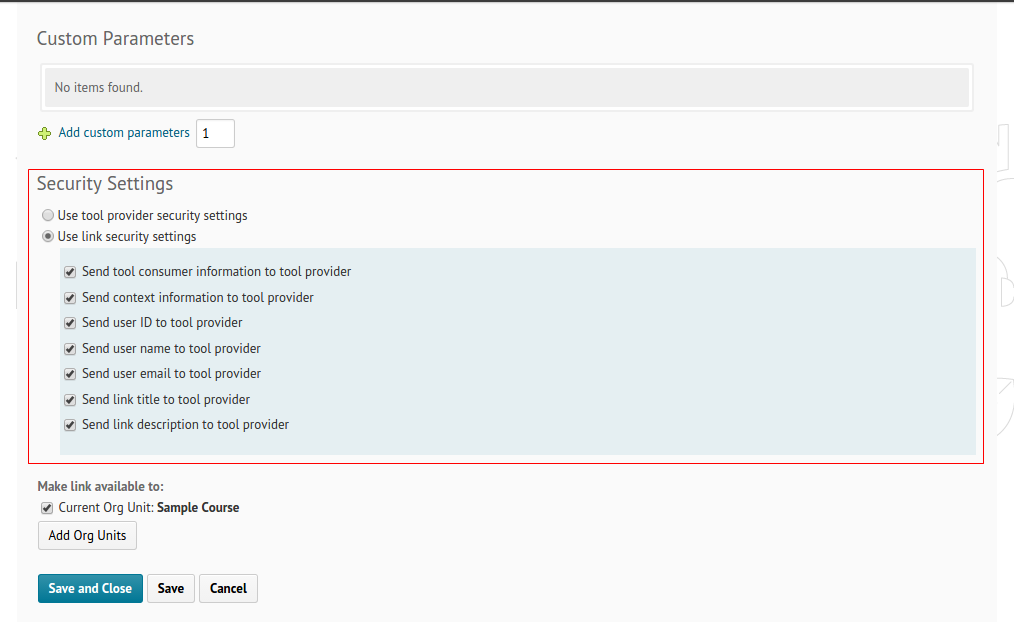
Click on “Save and Close”. You’ve now successfully installed Acclaim as an External Tool!
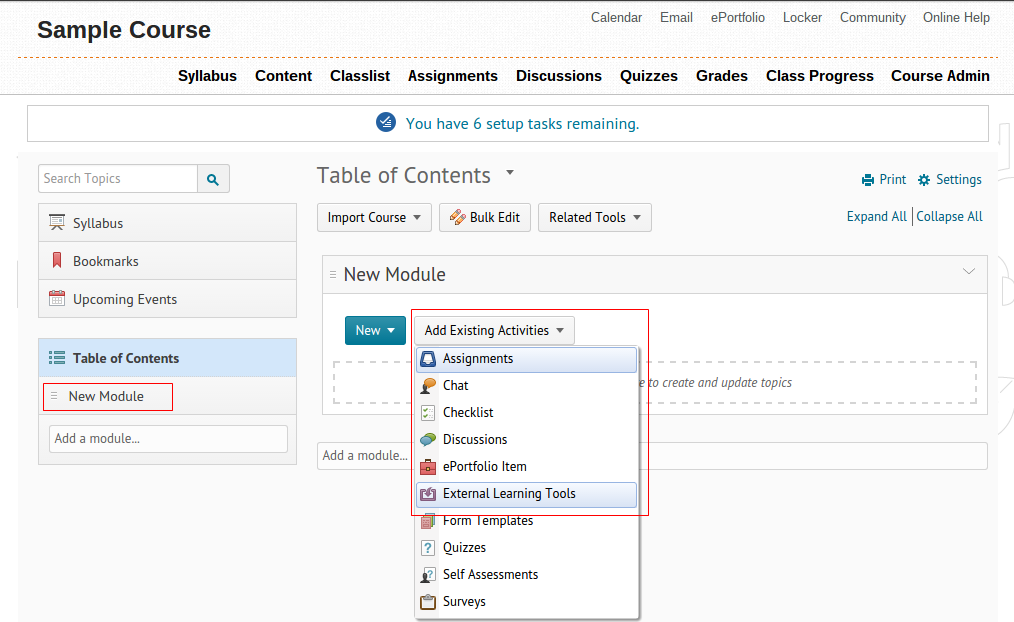
4) Acclaim will now show up as an option when adding content to a course. To test this, add a new module within a course and click on “Add Existing Activities”, then select “External Learning Tools”.
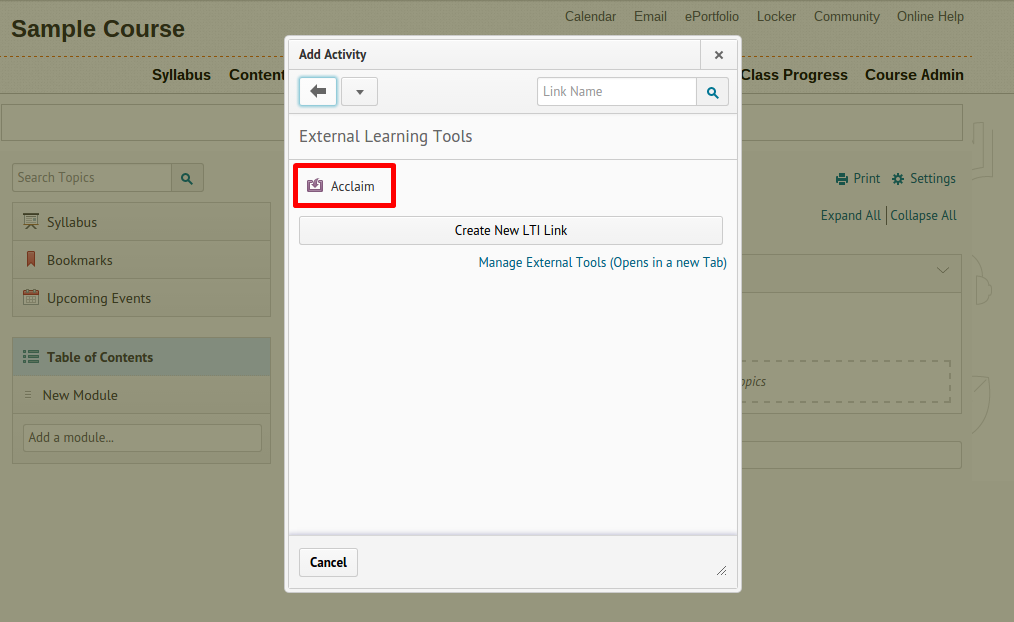
5) You will see Acclaim listed as an External Learning Tool, click on it to add it to your module.
6) You will now see a link to Acclaim within your module. Click on it to launch Acclaim within Brightspace.
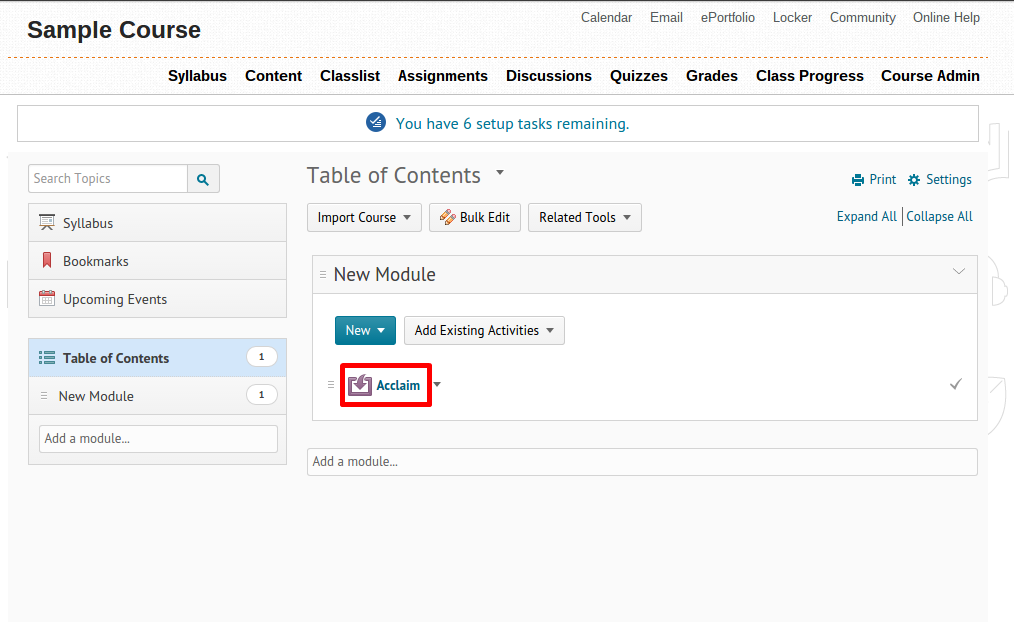
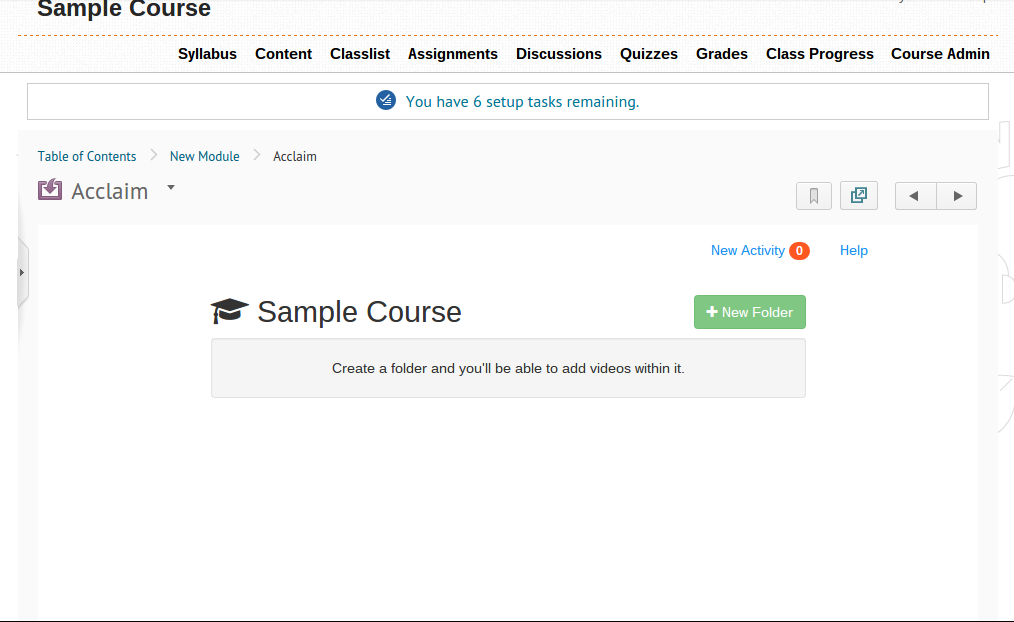
7) That’s it! Acclaim can now be used within Brightspace, using Single Sign On, and course names / roster will automatically populate as users click the LTI link.
0 Comments